Pulse Terminal.
A fast, beautiful, multi-tab terminal.
A fast, fully customisable multi-tab terminal with a themed powerline prompt, 33 built-in colour themes and a system-info startup banner.
Version 1.0.0 · Windows & Linux · Portable version available
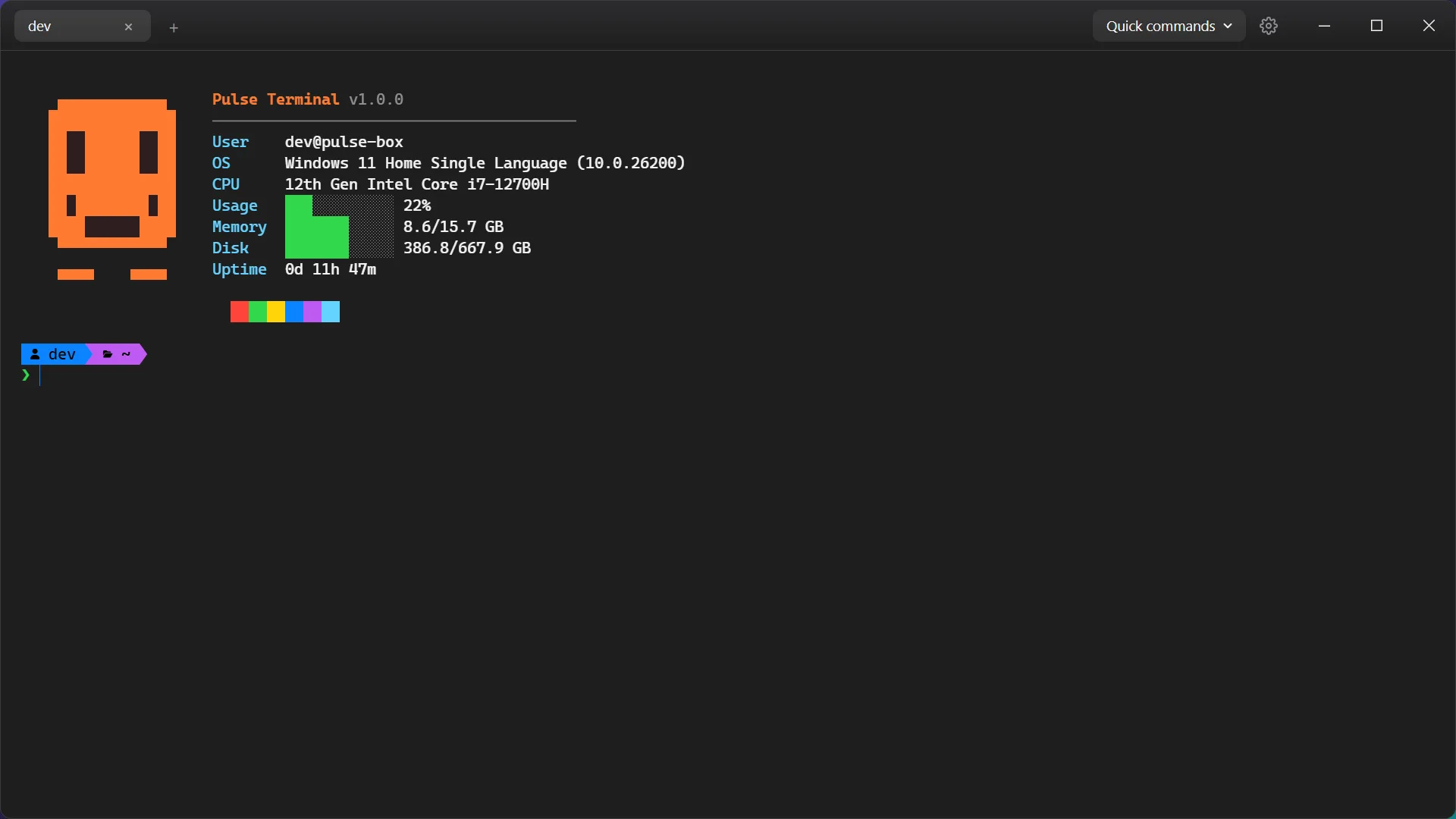
FOR PEOPLE WHO LIVE IN THE COMMAND LINE
A terminal that works the way you do
Tabs, themes and a prompt you will actually want to look at, in one lightweight app.
Multi-tab sessions
Every tab has its own shell process through a PTY (ConPTY on Windows). Drag tabs to reorder them and scroll when they overflow.
33 colour themes
Dark and light themes including Dracula, Nord, Gruvbox, Tokyo Night, Catppuccin Mocha, Solarized and Synthwave.
Powerline prompt
Shows your user, working directory and git branch with a dirty-state indicator. It follows the active theme.
Startup banner and quick commands
A mascot and system snapshot of OS, CPU, memory, disk and uptime, plus a customisable list of one-click commands.
Make it yours
Adjust window opacity, font family, font size and line height. Your settings are saved between sessions.
Native window behaviour
Windows Snap Layouts and edge snapping on a frameless, transparent window, with your window manager handling snapping on Linux. Windows uses PowerShell 7 when installed.
Watch Pulse Terminal in under 3 minutes
A quick tour of tabs, themes, the powerline prompt and settings.
YouTube Video
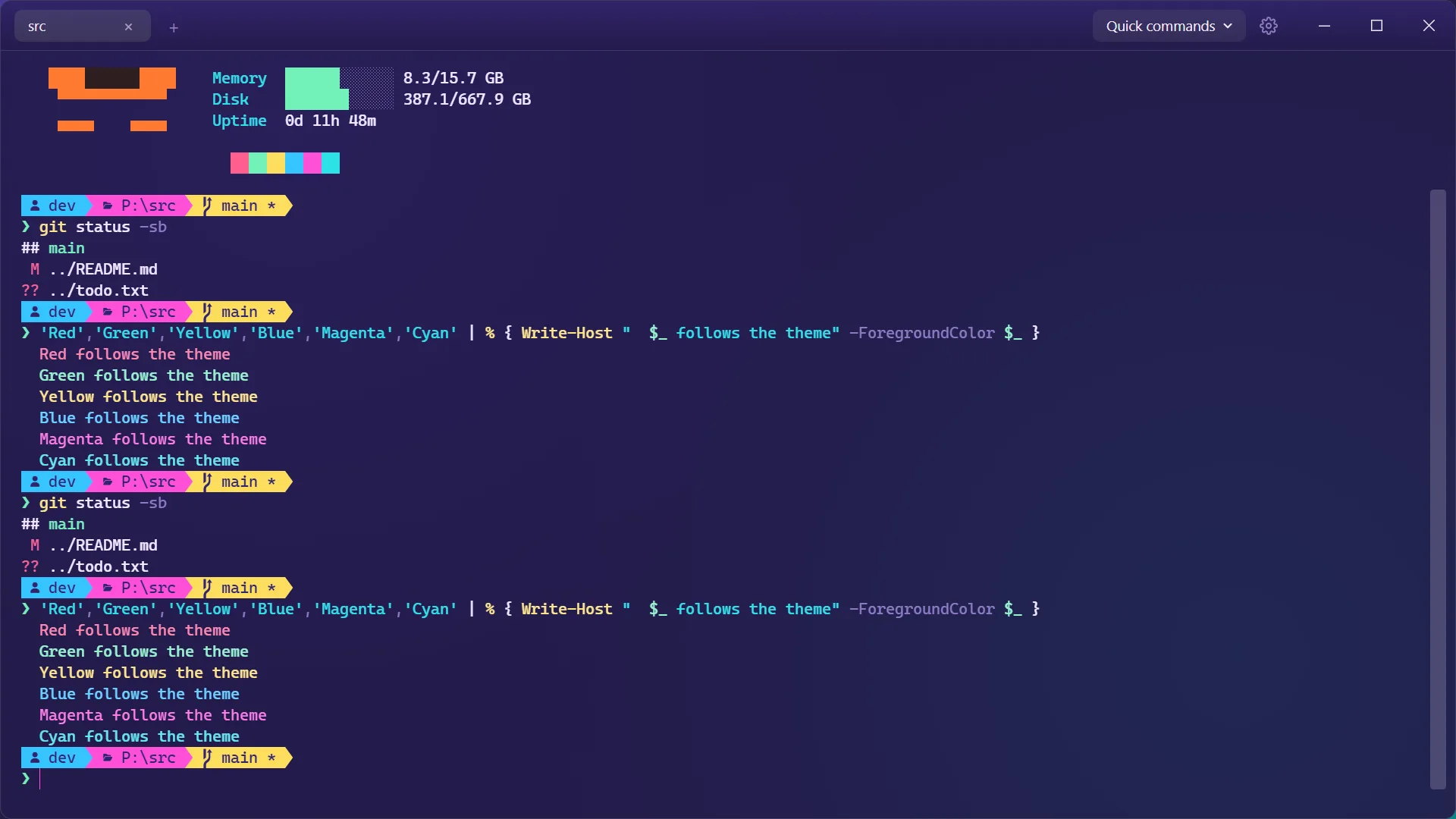
33 themes. Your terminal, your look.
From Dracula and Nord to Tokyo Night and Synthwave, plus light themes like Paper. The powerline prompt follows the active theme automatically.
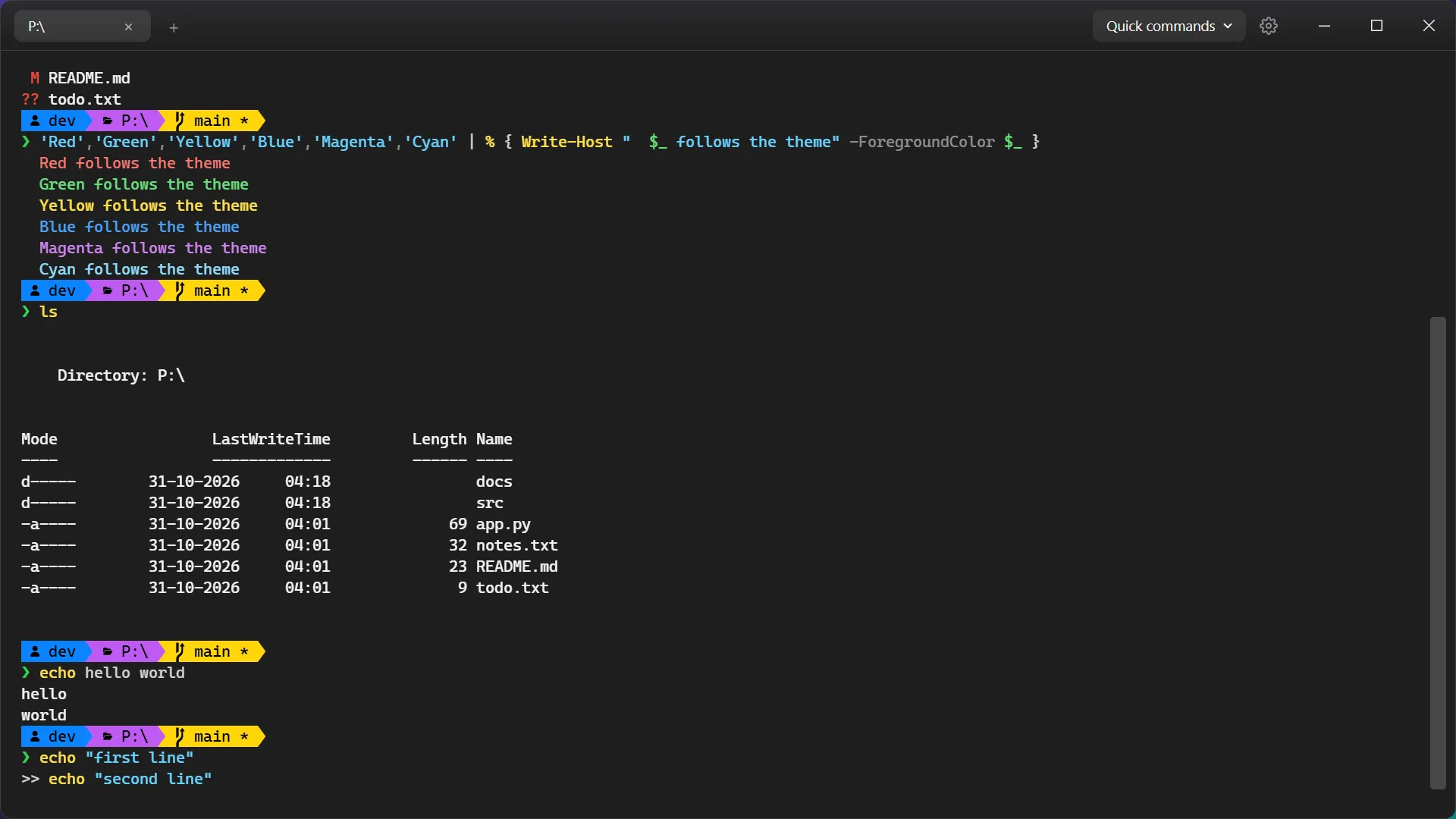
Edit commands like a text editor
Click inside the input line to move the cursor, use Shift+Enter or Alt+Enter for multi-line input, and paste several lines without running them immediately.
Small details that add up
Tabs, quick commands and a settings panel with live theme previews.
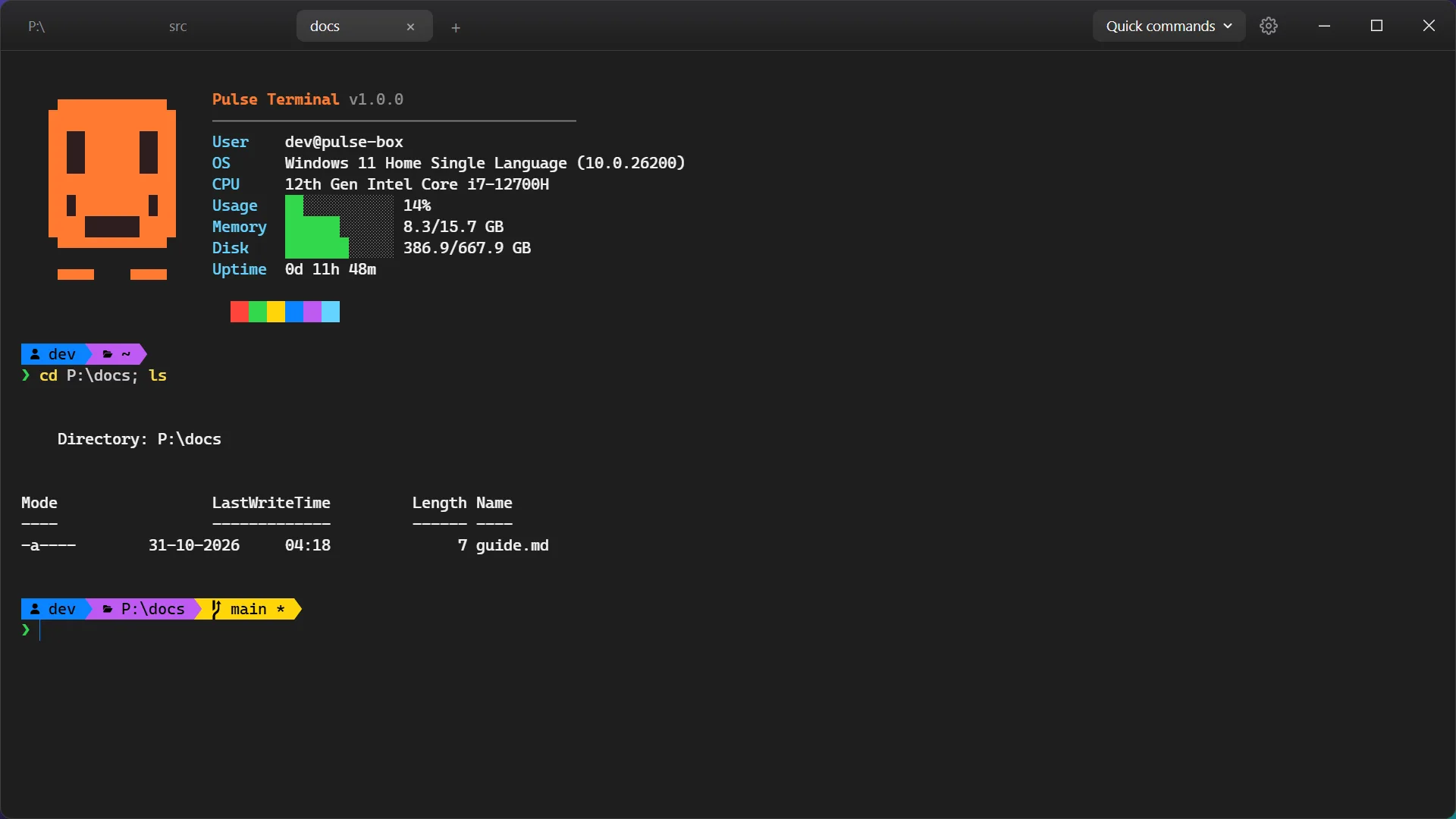
Tabs that stay out of your way
Open as many tabs as you need, switch between them and drag to reorder.
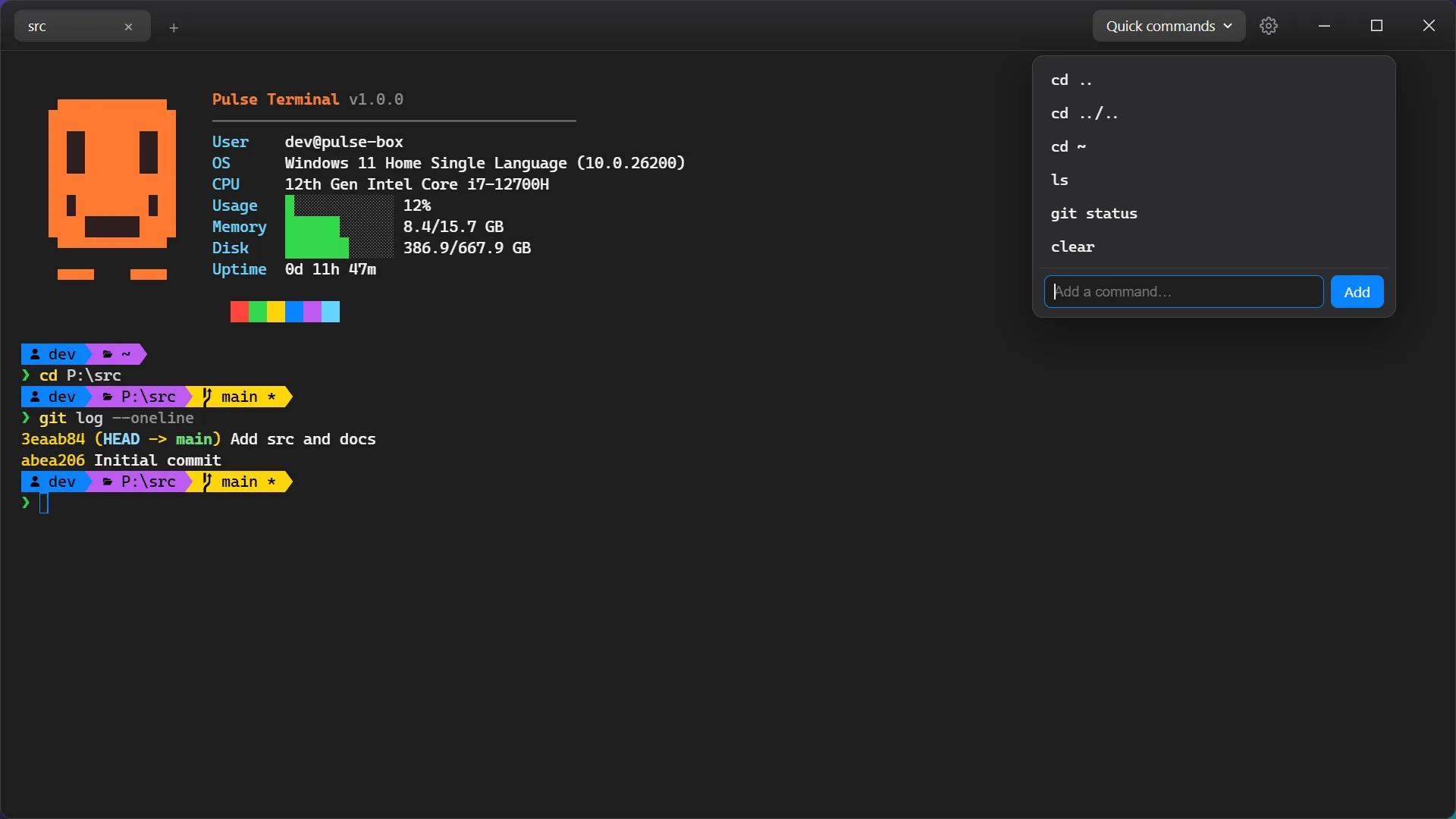
One-click quick commands
Keep your most-used commands in a menu, and add or remove your own.
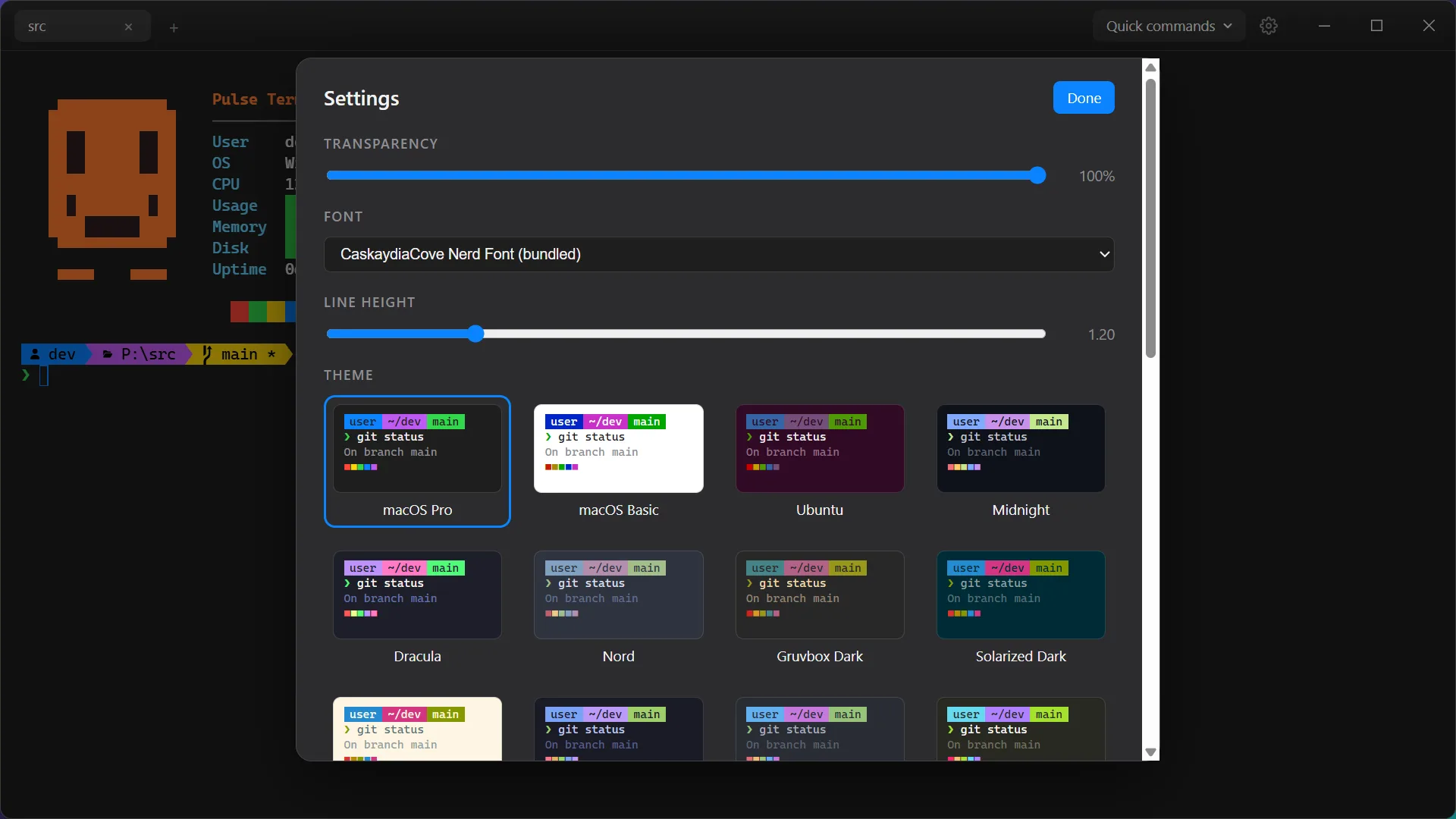
Themes, fonts and transparency
Pick from 33 themes with live previews and tune the font, line height and window opacity.
Get Pulse Terminal for your system
Version 1.0.0. Portable builds run without installing anything. Download, open and start typing.
Windows
Windows 10 or later
Linux
Ubuntu 20.04+, Fedora, Debian · 64-bit
macOS
macOS 11 or later · Apple Silicon & Intel
Coming soon
Looking for older versions or checksums? See all releases on GitHub
Built in the open.
The complete source code is on GitHub. Read it, build it, report bugs or send a pull request.
Common questions
Yes. It is free and open source under the MIT licence, with no ads, no accounts and no paid tier.
No. The portable build is a single file. Launching it again opens another window in the running instance, and all windows share the same settings.
On Windows it uses PowerShell 7 (pwsh) when it is installed, with a fallback to Windows PowerShell 5.1. On Linux it uses your login shell, with the full powerline prompt for bash and zsh.
Windows 10 or later (x64), where each tab runs its shell through ConPTY, or a 64-bit (x64) Linux distribution with a desktop session. It is developed and tested on Ubuntu; other distributions should work but are untested. The AppImage needs FUSE 2 (libfuse2).
Ctrl+T opens a new tab, Ctrl+W closes it, Ctrl+Tab and Ctrl+Shift+Tab switch tabs, Ctrl++, Ctrl+- and Ctrl+0 change the font size, and Ctrl+L clears the screen and redraws the banner. Ctrl+C copies only when text is selected, otherwise it interrupts.
Theme, font family, font size, line height, opacity and quick commands are saved automatically to a settings file in the app's data folder (under %APPDATA% on Windows, ~/.config on Linux). They are shared by every window and can be changed from the Settings panel.
No. Cascadia Code Nerd Font (CaskaydiaCove NF) is bundled for the prompt glyphs.
Absolutely. The full source is on GitHub. Issues and pull requests are welcome. For larger changes, please open an issue first.